

Using "My Account"
Using "My Account"
What is "My Account"?
The My Account feature lets you bookmark records you may want to view or reference in the future. You can also save searches to My Account or share your search results.
Below are step-by-step guides for the Bookmark, Save Search, and Share Search features of My Account.
My Account is accessible through the person icon in the upper-right corner of the masthead.
What is "My Account"?
The My Account feature lets you bookmark records you may want to view or reference in the future. You can also save searches to My Account or share your search results.
Below are step-by-step guides for the Bookmark, Save Search, and Share Search features of My Account.
My Account is accessible through the person icon in the upper-right corner of the masthead.
Registration for "My Account"
First-time users can create an account through free online registration. Please note that accounts are managed by Adam Matthew Digital, not by WashU Libraries.
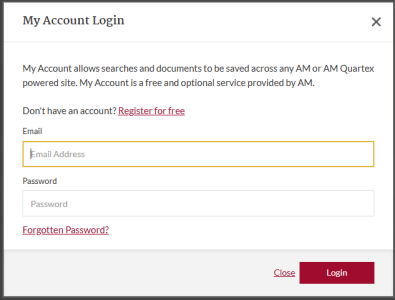
After clicking Register, you'll receive an email with a link to activate your account. This link expires 7 days after you submit your registration. You can update your profile details anytime from the Profile page in your account.
Registration for "My Account"
First-time users can create an account through free online registration. Please note that accounts are managed by Adam Matthew Digital, not by WashU Libraries.
After clicking Register, you'll receive an email with a link to activate your account. This link expires 7 days after you submit your registration. You can update your profile details anytime from the Profile page in your account.
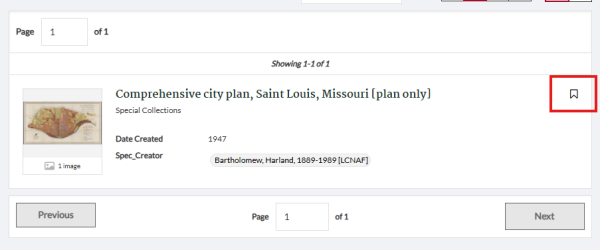
You can bookmark records from a search results list by clicking the bookmark icon next to each record.
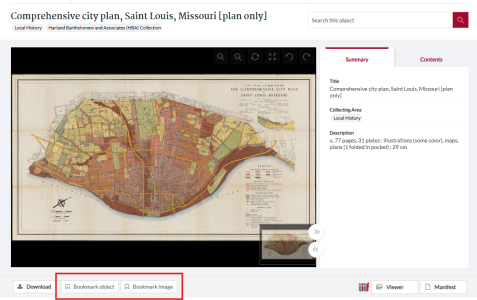
Alternatively, when viewing a record, the same icon lets you bookmark the whole record or bookmark specific files within the digitized object. The Bookmark icon appears directly below the image viewer.
Any bookmarked records and files appear when you log in to My Account. Clicking a bookmarked record opens it in a new page. Use the sidebar filters to narrow your bookmark list to show either complete records or individual bookmarked items.
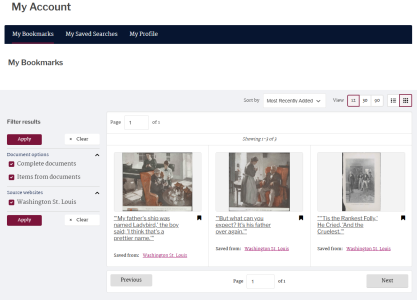
Within My Account, you can view your bookmarked records in gallery-style format, or switch to list view for more detail.
Bookmarking
You can bookmark records from a search results list by clicking the bookmark icon next to each record.
Alternatively, when viewing a record, the same icon lets you bookmark the whole record or bookmark specific files within the digitized object. The Bookmark icon appears directly below the image viewer.
Any bookmarked records and files appear when you log in to My Account. Clicking a bookmarked record opens it in a new page. Use the sidebar filters to narrow your bookmark list to show either complete records or individual bookmarked items.
Within My Account, you can view your bookmarked records in gallery-style format, or switch to list view for more detail.
Use the Save Search feature in My Account to save your search parameters and easily rerun the query later. You'll find Save Search in the upper-right corner of the search criteria box, which appears above the assets list after a search runs.

Saved searches are accessible via My Account, provided you've created an account (see details on how to do this above).
My Account also offers a Share Search feature. At the top of the search results list, to the right of the search criteria box, you'll see a Share Search button. Clicking it opens a Share Search pop-up displaying a unique URL for that search list, useful for collaborative work or research - for example, a librarian sharing a search with researchers, a student sharing one with peers, or a teacher sharing results with students for an assignment on a set of materials.
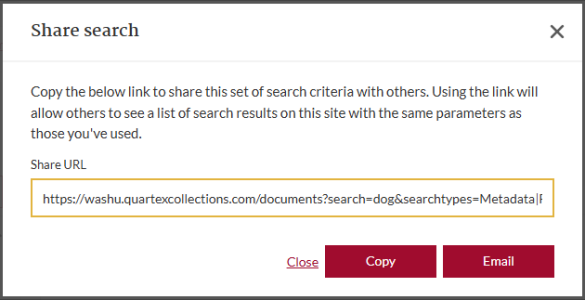
The pop-up lets you copy a link to the results or email them directly to someone else. No account is required to use Share Search.
Save and Share Search
Use the Save Search feature in My Account to save your search parameters and easily rerun the query later. You'll find Save Search in the upper-right corner of the search criteria box, which appears above the assets list after a search runs.
Saved searches are accessible via My Account, provided you've created an account (see details on how to do this above).
My Account also offers a Share Search feature. At the top of the search results list, to the right of the search criteria box, you'll see a Share Search button. Clicking it opens a Share Search pop-up displaying a unique URL for that search list, useful for collaborative work or research - for example, a librarian sharing a search with researchers, a student sharing one with peers, or a teacher sharing results with students for an assignment on a set of materials.
The pop-up lets you copy a link to the results or email them directly to someone else. No account is required to use Share Search.
For more information on My Account or any other Quartex feature, please contact info@quartexcollections.com.
For more information on My Account or any other Quartex feature, please contact info@quartexcollections.com.