

Search
Search
Basic Keyword Search
In addition to the homepage, a search box appears in the masthead on every page. Look for the magnifying glass icon with the rollover text "Open search input." Use this box to run a simple keyword search across all available records. Results include matches from both metadata and any available full-text transcripts, displayed as a list sorted by relevance.
To use Boolean search terms, you'll need to run an Advanced Search instead.
Basic Keyword Search
In addition to the homepage, a search box appears in the masthead on every page. Look for the magnifying glass icon with the rollover text "Open search input." Use this box to run a simple keyword search across all available records. Results include matches from both metadata and any available full-text transcripts, displayed as a list sorted by relevance.
To use Boolean search terms, you'll need to run an Advanced Search instead.
Collection-specific search
To search within a specific collection, navigate to that collection's page from Explore Our Collections or Collections A to Z. Use the search box to the right of the collection title, which displays the placeholder text "Search [Specific Collection]."

Collection-specific search
To search within a specific collection, navigate to that collection's page from Explore Our Collections or Collections A to Z. Use the search box to the right of the collection title, which displays the placeholder text "Search [Specific Collection]."
Searching within a record
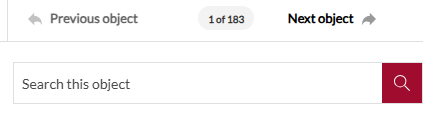
Use the search box to the right of the title to search both the metadata and any available transcripts within a record. Results display in the same tab below the record as they do when you arrive there from a sitewide search.
Searching within a record
Use the search box to the right of the title to search both the metadata and any available transcripts within a record. Results display in the same tab below the record as they do when you arrive there from a sitewide search.
Advanced Search
Access the Advanced Search page from the link below the search box on the homepage or at the top of any page.
- Perform a fielded search of any non-linked metadata from this page. Advanced Search also lets you add criteria such as date ranges, controlled vocabulary, or collection filters at the outset of a search, rather than running a keyword search and refining it afterward.
- Search for several keywords or phrases using the AND, OR, and NOT Boolean operators.
- Apply any desired filters; your selections display in the search criteria box at the bottom of the page. Click Search to run the search, or Clear Form to clear all criteria and start over.
- Searches run during the current session appear on the right in the Previous Searches box. Click any hyperlinked search term to rerun that search.
- Click Search to display a list of results. Search criteria appear at the top of the page in the search criteria box, from where you can also save the current search to My Account. Learn more about this feature in Using My Account.
Advanced Search
Access the Advanced Search page from the link below the search box on the homepage or at the top of any page.
- Perform a fielded search of any non-linked metadata from this page. Advanced Search also lets you add criteria such as date ranges, controlled vocabulary, or collection filters at the outset of a search, rather than running a keyword search and refining it afterward.
- Search for several keywords or phrases using the AND, OR, and NOT Boolean operators.
- Apply any desired filters; your selections display in the search criteria box at the bottom of the page. Click Search to run the search, or Clear Form to clear all criteria and start over.
- Searches run during the current session appear on the right in the Previous Searches box. Click any hyperlinked search term to rerun that search.
- Click Search to display a list of results. Search criteria appear at the top of the page in the search criteria box, from where you can also save the current search to My Account. Learn more about this feature in Using My Account.